- Insight
- Introduction When organizing QC images for [Chrome Hearts](https://fashion-reps.net/brand/chrome-hearts) [accessories](https://fashion-reps.net/accessories), the real challenge isn't just where to store the images—it's making sure every image links back to the corresponding product, variant, and issue location. A website-style spreadsheet is great for browsing brands, categories, and product cards, while Google Sheets is better for building a filterable, updatable, and collaborative record. This
Editor score 4.2 / 5
Introduction
When organizing QC images for Chrome Hearts accessories, the real challenge isn't just where to store the images—it's making sure every image links back to the corresponding product, variant, and issue location. A website-style spreadsheet is great for browsing brands, categories, and product cards, while Google Sheets is better for building a filterable, updatable, and collaborative record.
This article focuses on one specific task: starting from the fashionreps product catalog, entering candidate product pages, checking visible specifications, links, and QC image entry points, and then compiling the confirmable information into Google Sheets. We do not treat the website pages as an order, payment, or logistics system, nor do we state conclusions that cannot be confirmed from the page. 📋

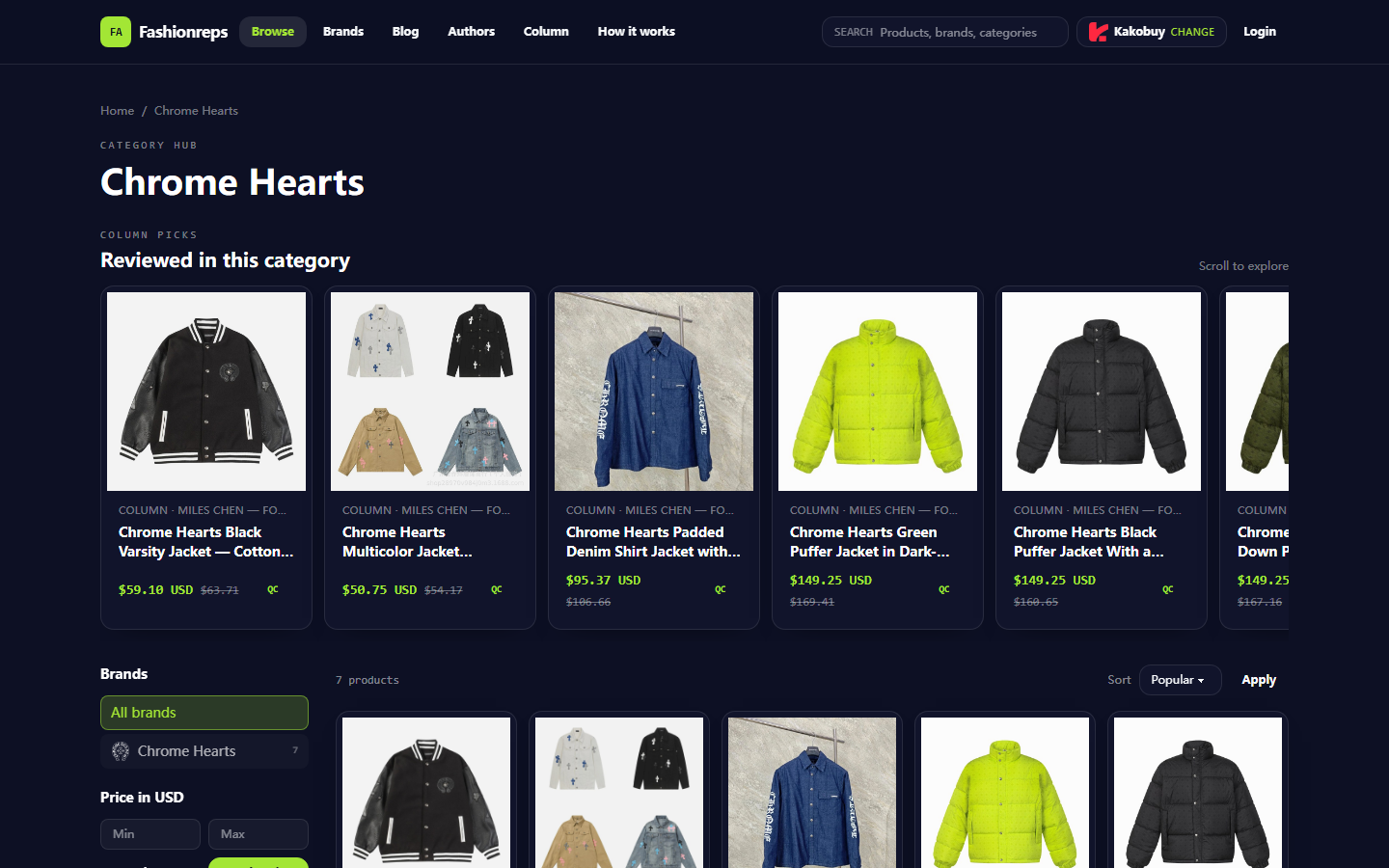
Image: Example of Chrome Hearts category page on fashion-reps.net. The page shows product cards, reference prices, QC entry points, and filter controls; the image is not used to prove the actual quality of the items.
Clarify the Task for Chrome Hearts Accessory QC Records
Before starting, write down the goal of your records: you are saving "what visible QC evidence exists for a candidate product and what details still need confirmation," not passing final judgment on the product.
Once completed, the record should at least support the following actions:
- Return from the record to the original product page.
- Distinguish between different colors, sizes, or style variants.
- Mark locations in the images that need further review.
- Record the image source and last verification time.
- Decide whether the next step is to confirm, take additional photos, or hold off.
Also mark cases that don't apply: if a page only has tags, search results, or blank cards with no clear product name and visible information, it cannot be treated as a valid QC sample; if an image cannot be confirmed to a specific product, don't assign it to a variant. 🔍
The current visible Chrome Hearts page example belongs to the jacket category, showing brand filter, price filter, sorting, and product cards. It illustrates how to browse the catalog, but you cannot infer the material, size, stock, seller, or physical condition of an accessory from it.
Find Brand, Category, and Product Cards from the fashionreps Website-Style Spreadsheet
After entering fashion-reps.net, first narrow down using brand or category entries, then view product cards. In the page example, you can see the Chrome Hearts brand category and multiple product cards, each containing the product name, reference price, and QC entry point.
Recommended browsing order:
- Confirm the page title and current category first to avoid mixing products from adjacent categories into your records.
- Use brand, price, or sorting controls to narrow down candidates.
- Read the complete product name on the card; don't save only the brand name or shortened title.
- Open the product card to enter the product detail page.
- Use the product page URL as one of the unique return points for subsequent records.
The value of a website-style spreadsheet is quick discovery and horizontal browsing. It's suited for initially answering "what candidates are there" and "which cards are worth opening," not for replacing item-by-item QC recording. Reference prices should also be treated only as reference information displayed at the time of viewing; re-verify the page date, currency, and product status before publishing or making decisions.
Enter Product Pages to Check Specifications, Links, and Visible QC Image Entry Points
After opening a product page, don't save images right away; first confirm that the page truly corresponds to the item you're recording. At least check the following:
- Is the product name complete and consistent with the card?
- Does the page clearly belong to Chrome Hearts and the target category?
- Can you see color, size, style, or other variant information?
- Can the product page link be reopened?
- Does a QC image entry point exist, and does it point to this product?
- Does the page provide enough visible explanation to support the record?
If the page shows only one image, you cannot judge the overall workmanship from it; if the image lacks a ruler, label, stitching, or structural details, don't fabricate evidence that doesn't exist. Records should distinguish between "page shows," "image visible," and "currently unconfirmable."
You can use the following minimal verification framework:
| Verification Item | What Can Be Recorded | What Should Not Be Inferred |
|---|---|---|
| Product Identity | Page name, category, product link | Authenticity, specific seller |
| Variant | Colors, sizes, or styles explicitly shown on page | Sizes and stock not listed on page |
| Image Evidence | Labels, structures, or details actually visible in image | Workmanship or material feel of parts not shown |
| Time Status | Verification date, information shown at that time | Prices or stock that will remain unchanged in future |
Pay special attention to size and detail location for accessories. Rings, necklaces, bracelets, hats, and other small items have different image requirements; don't directly apply clothing QC image standards to all accessories. If the target page is still in the jacket category, find the actual accessory page first before building accessory records. 📸
Set Up Google Sheets Fields for Images, Issue Locations, Variants, and Update Time
Google Sheets' role is to organize scattered pages and images into a reviewable worksheet. Fields don't need to be complicated initially, but they must support return visits and decision-making.
It's recommended to use one row per product variant or item to verify, rather than cramming a whole set of images into one row. If there are many images, you can save the main image link in the same row and note other image links in the remarks; if each image corresponds to a different issue location, splitting into multiple rows is clearer.
Suggested fields:
| Field | Purpose |
|---|---|
| Record ID | Create a stable number for each record |
| Product Name | Save the full name as shown on the page |
| Brand & Category | Distinguish Chrome Hearts and specific product type |
| Variant | Record color, size, style, etc. as explicitly shown on page |
| Product Page URL | Return to original page for verification |
| QC Image URL | Point to visible image or image entry |
| Issue Location | E.g., label, edge, connection point, or pattern area |
| Observation Notes | Write only what is actually visible in the image |
| Items to Confirm | Mark areas needing additional photos or further inquiry |
| Update Time | Record the last verification date |
| Status | Confirm, additional photos, hold, or cannot determine |
Don't just paste image links and product page links in screenshots. Put URLs in separate fields for filtering, copying, and reopening. Update time should not be omitted, as page content, reference prices, image entry points, and link status may change.
In Sheets, you can set dropdown options like "Confirm," "Additional photos," "Hold," or "Cannot determine" to avoid filter confusion from synonyms among different users. For multi-person collaboration, keep edit history and note the reason for changes in remarks rather than overwriting the original judgment. ✅
Compare the Workflow of Site-Based Browsing vs. Spreadsheet Item-by-Item Recording
The two tools solve problems at different stages. The website-style spreadsheet handles discovery and browsing, while Google Sheets handles organization and tracking. Using one tool as the other usually increases omissions.
Website pages are better for:
- Quickly viewing candidate products by brand or category.
- Narrowing down using price filters and sorting.
- Entering detail pages from product cards.
- Observing QC image entry points provided by the page.
Google Sheets is better for:
- Centrally saving products, variants, images, and original page URLs.
- Filtering by status, update time, or issue location.
- Keeping records across multiple verifications.
- Collaborating with others to add items to confirm.
A practical workflow is to first complete discovery on the website, then record in Sheets, and finally return to the product page for a link and image re-check. Don't batch copy images before confirming product identity, and don't register the same image under multiple variants without explaining why.
Boundaries for Viewing Images, Copying Links, and Returning to Pages on Mobile
Mobile is fine for quick viewing and simple record additions, but it's not a substitute for full verification. Small screens may hide complete product names, variant information, or page controls, and images may lose detail when zoomed.
When operating on mobile, follow these boundaries:
- Copy the product page URL first, then the QC image URL.
- After copying, immediately open once in a browser or Sheets to confirm the link isn't truncated.
- Use horizontal scrolling or zoom to view images, but don't treat blurry zoomed areas as definitive evidence.
- Before returning to the page, save changes to the current row to avoid losing status and notes.
- Don't put order numbers, full shipping labels, phone numbers, or payment info in a publicly collaborative sheet.
If mobile cannot confirm which product an image belongs to, mark the status as "To confirm" rather than guessing from file names or thumbnails. For tasks requiring comparison of multiple details, go back to a larger screen for final judgment. 📱
Visible Image Evidence, Editorial Judgments, and Unconfirmable Matters
The core of QC recording is not to describe images more assertively but to accurately distinguish evidence levels.
"The label position is visible in the image," "a certain edge has wrinkles," or "the page lists a certain size" are recordable observations. "The material is definitely a certain fiber," "the product definitely has no flaws," "the seller is definitely reliable," or "the product definitely meets authenticity standards" require additional sources and cannot be concluded from a catalog page or a single QC image alone.
Suggest dividing editorial judgments into three layers:
- Visible facts: content directly shown on the page or image.
- Issues to verify: doubts arising from image angle, clarity, or insufficient page information.
- Decision status: choose confirm, additional photos, or hold based on current evidence.
This approach reduces misjudgment and helps future collaborators quickly know what to supplement next. Neither the article nor the records should claim that the editorial team personally purchased, received, or wore the items for testing; judgments here are limited to organizing page and image evidence. 🧾
Final Actions: After Completing QC Records, Confirm, Take Additional Photos, or Hold Candidates
When a record is complete, do a final check in this order:
- Are product name, category, and variant consistent?
- Can product page URL and QC image URL be reopened?
- Can each judgment be traced back to a specific image or page text?
- Is update time filled in?
- Are unconfirmed items clearly marked?
- Did you mistakenly apply jacket page information to accessories?
If images are clear enough, product identity is definite, and there are no pending issues, set status to "Confirm." If key angles, size references, or detail images are missing, mark as "Additional photos" and note specific locations in remarks. If page links are broken, product identity is unclear, or evidence is insufficient, choose "Hold" and don't fill gaps with guesses.
Finally, the website-style spreadsheet and Google Sheets are not about one fully replacing the other: the former is for discovering candidates and centralized browsing, the latter for turning image evidence into a filterable, collaborative, and returnable QC record. As long as each record keeps the original page, images, variants, issue locations, and update time, you can quickly determine on your next review which candidates can proceed, which need more evidence, and which should not be pushed forward for now.
Common Questions about Shopping on Agent Platforms
1. What are QC photos on kako-sheet.org?
All dropshipping platforms have dedicated quality control teams. When your items arrive at the kako-sheet.org warehouse, the platform performs quality checks and takes QC photos of the items. Typically three photos are taken, and the team checks that color, size, specifications, and quantity match the order, while also checking for quality issues. However, electronics are excluded and only inspected for appearance. If quality issues or incorrect size/color are found, the team will immediately request a return from the seller, ensuring you receive high-quality products.
2. Is kako-sheet.org, the spreadsheet website, safe?
The website does not collect any personal information; it serves only as a product catalog for agents. All transactions occur on the agent platform.
3. Why doesn't kako-sheet.org use Google Sheets?
Google Sheets only works for spreadsheets with a small number of products. Once the product count increases, loading becomes very slow and the system lags noticeably. Especially on mobile devices, the visual experience is poor and searching for products is extremely inconvenient. For the same product collection, kako-sheet.org's spreadsheet loads faster and offers a better visual experience.
4. How do I search for products I want to buy on kako-sheet.org?
You can search with a single keyword or go directly to category pages; products are also organized by brand. Longer search terms usually return fewer but more precise results than shorter ones. For example, you can search for "Air Force 1 White", "sneakers", or simply "Air Force 1".